
Coaches told us the same things about FYTT for a long time. The depth was there, but the interface felt dated, the mobile experience needed to move faster on the floor, and some of the most useful tools sat a few layers deeper than they should. Since we relaunched on September 22, we have rebuilt the platform around the jobs you do every day, and Flex, FYTT's intelligent coaching assistant, is now available to every coach in the desktop coaching app.
This post walks through what changed, organized by the job it helps you get done.
Finding your way around
The rail on the left holds every page for the team you are working in, from Home and Plans to Calendar and Roster, and you can expand it to show page names beside the icons. The Team control switches between teams and keeps you on the same kind of page, so moving from one team's calendar lands you on the next team's calendar. When you know what you want, Command-K (Ctrl+K on Windows) opens a search that finds athletes, plans, reports, or pages from anywhere in the app. Dark mode is available too, for late nights in the office and dim weight rooms.

Flex, for every coach
Flex, FYTT's intelligent coaching assistant, is available to every coach in the desktop coaching app. You tell Flex what you want in plain language, and it does the work on your team's records: it builds programs and plans in your house style, converts last year's spreadsheet into a FYTT program, adjusts scheduled training when an athlete gets hurt, answers questions from your data, sets up the Automations you describe, and keeps your library and testing setup organized. Open it from the Flex button beside search or with Command-period, and on pages like the library, plans, reports, and the calendar a With Flex button starts it with that record attached. Anything new Flex builds arrives as a draft you save before it reaches athletes, and its replies include undo links. We walk through each job in Everything Flex Can Do for Your Staff.

Knowing where a team stands
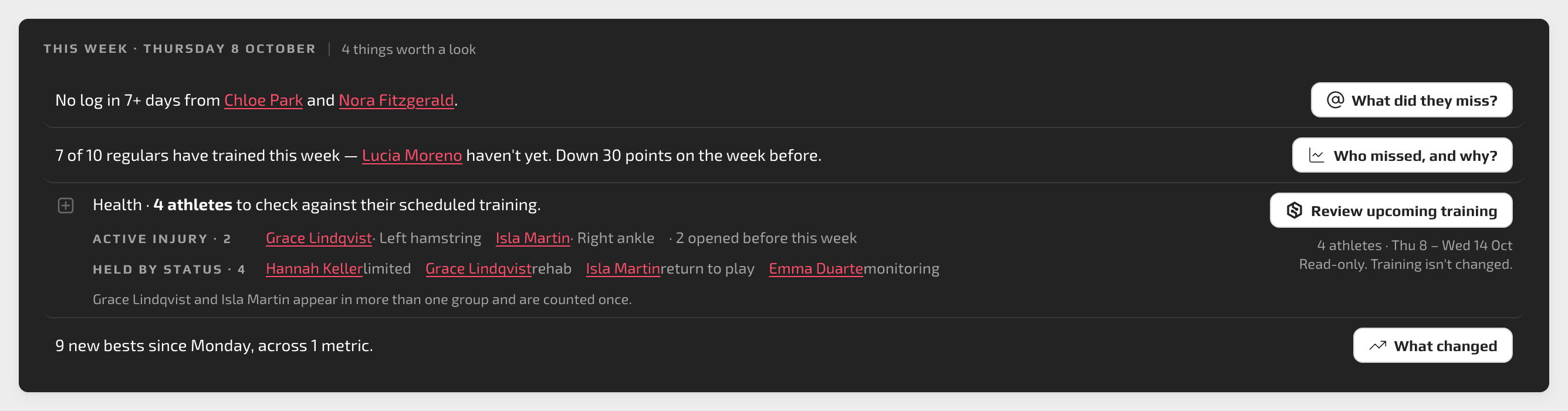
Every team opens to Home, and once a team is training, the top of Home is a weekly brief that tells you what is worth a look this week. It flags athletes who have gone seven or more days without logging, shows how many of your regulars have trained, groups athletes with an active injury or a held status for anyone with permission to see health data, and calls out new bests, programs ending within two weeks, and drafts still waiting to be finished. Each line comes with a button that opens Flex with the question already asked, and nothing changes until you confirm. Below the brief, Today's Schedule, Active Programs, Recent Activity, Compliance, and Attendance cards fill in the rest of the picture.
Brand new teams see a getting-started card instead, which walks through five steps: bring in a program, add athletes, record starting metric values, schedule the program and invite athletes, and log the first session. Each step checks itself off when the team's records show it is done.
Building training
The program builder now supports bulk copy and paste, so you can tick the days you want and copy a whole week or column at once. Detailed View lays out every set of every workout in one place and lets you preview percentage-based sets as calculated weights for a specific athlete. When training has to exist on paper, Download exports the whole program as a PDF with every block type included, or as a spreadsheet with one sheet per week.

The training library keeps Programs, Progressions, Workouts, Blocks, Exercises, and Tags in their own tabs, and each tab is a table you can search, sort, and filter. Every item lives in one of three places: the institution, a specific team, or your own personal library, which only you can see and program from. You can set your new content to save to your personal library by default, so drafts and experiments stay out of the shared library until you are ready, and you can bring exercises in from a CSV file.

On the calendar, the Schedule workout panel lets you assign a workout to a group or one athlete, set the date and time, and start from a template. FYTT Automations are built on a visual canvas that draws your decision tree from the top down, and See who goes where shows each athlete's current route and why before you turn the Automation on.

Seeing how athletes are doing
Athlete reports use an editable layout: choose Edit layout, add panels such as single metrics, line graphs, tables, exercises, and attendance, and arrange them the way you want to read that athlete. Group reports compare athletes one row per athlete and one column per metric, and leaderboards can go up on the weight room TV in TV mode.


Running the session
The whiteboard shows results as athletes log them on their phones, and you can change an athlete's prescription right on the sheet before their row is recorded. TV view opens the workout laid out for a big screen, either all blocks at once or one per page.

Station tablets show every athlete at the station as a tab with a ring that fills as they record, so you can see who is moving through the session at a glance. Coaches sign a tablet in with a six-character code that is valid for 30 minutes, generated from a computer or from Facility access in the phone app, so nobody shares a password on the floor. Each facility decides whether coaches can create those codes and whether a coach signed in that way sees only the athletes on the teams they coach.

The athlete app
The athlete app opens on Train, followed by Rankings, Programs, Chat with an unread count, and Profile. Athletes can preview a workout before they start, record a set as prescribed with one tap, or open the keypad to enter what they actually did, and sets that differ from the prescription are tagged Off prescription. Every set has a media slot for a photo or video, and Exercise info shows the coach's video and description alongside a chart of the athlete's last 10 sets of that exercise.

Data coming in from your other tools
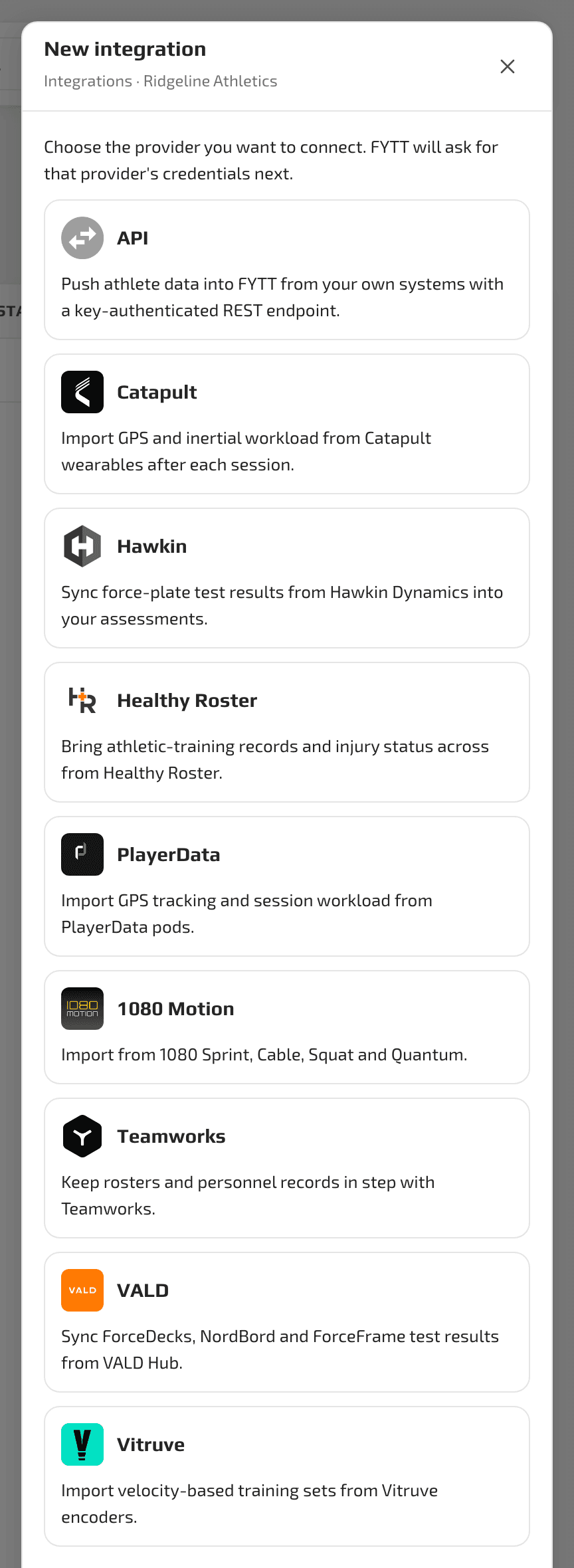
Hawkin Dynamics, VALD and 1080 Motion now connect through the integrations hub. 1080 Motion brings in velocity, force, power, and sprint data from 1080 Sprint, Cable, Squat, and Quantum sessions, and VALD keeps an athlete's best result when they test more than once in a day. For Hawkin Dynamics, you now choose which value FYTT keeps when an athlete tests more than once in a day: the best, the most recent, or the average. Healthy Roster imports injuries for matched athletes every night, and Catapult, PlayerData, Teamworks, Vitruve, and the FYTT API round out the hub.
Any questions? Email us at team@fytt.io or book a demo!